
Looking for general information?
- What is the Security Checker?
What is the Security Checker - FAQ about the Security Checker
FAQ zum Security Checker - Your Security Checker is not compliant and you don't know how to fix it?
How do I achieve a "compliant" status in the Security Check? (Troubleshooting)
How do I achieve a "compliant" status in the Security Check?
Topics covered in this article
(Click the relevant topic to jump to the appropriate section.)
The application is detected as a virus.
The Security Checker reports "Error while sending".
The error message "ID not detected" appears.
The completed check is not stored on the platform.
The error message appears that the app cannot run on this PC, or the app does not start after double-clicking
Check whether Windows SmartScreen is blocking the application:
- Locate the application file (.exe).
- Right-click the file and select Properties.
- In the General tab, look for the message: "This file came from another computer and might be blocked to help protect this computer."
- If available, check the Unblock box.
- Click Apply and then OK.
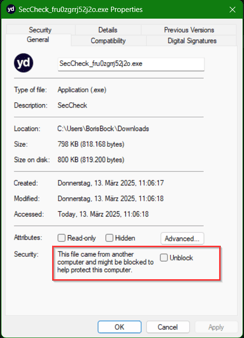
The application is detected as a virus
The Security Checker examines the device's security settings. Because of this, some antivirus programs may incorrectly identify it as potentially unwanted software.
If this happens, create an exception for the application in your antivirus software. Please refer to your antivirus software's documentation for instructions.
The application is only flagged based on suspicion and is safe to use.
Want additional reassurance?
Verify the digital signature. The application is digitally signed to prevent tampering. You can check the certificate by:
- Right-clicking the file.
- Selecting Properties.
- Opening the Digital Signatures tab.
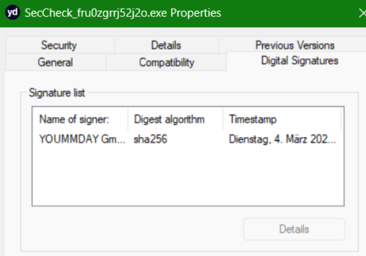
The Security Checker reports "Error while sending"
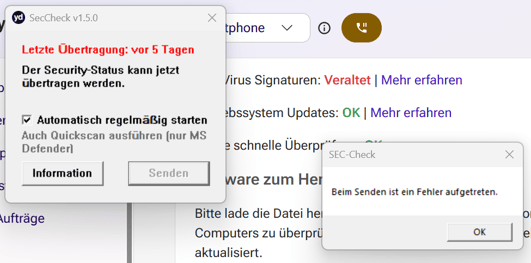
In most cases, communication is being blocked by another installed antivirus or security application.
This can happen even if the Security Checker has already been added as an exception. One program known to cause this issue is Avast Antivirus.
If the error occurs:
- Temporarily disable the installed security software for testing purposes.
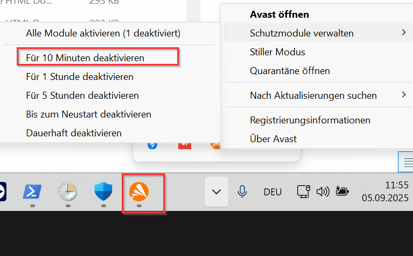
- Manually run the Security Checker again.
- Click Send.
The error still occurs?
Please send a screenshot of the window displayed when clicking "Information" in the Security Checker via the Talent Support Chat .
The error message "ID not detected" appears
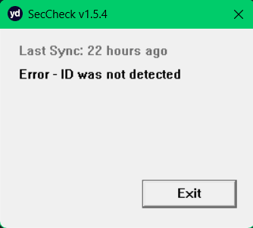
Make sure that neither you nor your browser changed the filename after downloading it.
The Security Checker only starts correctly when the filename contains the corresponding Talent ID.

If you accidentally renamed the file, simply download the Security Checker again.
If you download the application multiple times, make sure to remove any additional number appended to the filename (for example, "(1)", "(2)", etc.).

The completed check is not stored on the platform
Make sure that the Talent ID in the filename matches your account.
If you have multiple active accounts (for example, one as a Talent and another as an FTTL), you must download and use a separate Security Checker for each account.
Also remember that each check only applies to the specific device on which it was performed.
If you use more than one device, you must complete a separate Security Check on each device.