
If you would like more general information, please see: Was ist der Security Checker?
If your Security Checker is not compliant and you do not know how to fix it, please see: How do I achieve "compliant" status in the Security Check? (Troubleshooting)
If you are experiencing technical problems while downloading or running it, please see: What can I do if downloading or running the Security Checker does not work? (Troubleshooting)
The following questions are answered in this article:
Is the Security Checker mandatory?
What data does the Security Checker collect? Does it include personal data?
What can I do if the Security Checker status is not displayed or is shown in red?
How often does the Security Checker need to be run?
Do I always have to start the Security Checker manually? Can the data be sent automatically?
Do I need a separate antivirus program? Is Microsoft Defender sufficient?
How is data protection handled, and can I object to the use of the Security Checker?
How can I remove the Security Checker?
Is the Security Checker mandatory?
Yes, once you are active in a project and wish to continue working on it.
To ensure both the security of your data and that of our clients, the Security Checker must be run regularly.
If you cannot provide a current Security Check, certain platform features may be disabled for you (for example, shift scheduling).
What data does the Security Checker collect? Does it include personal data?
No. The Security Checker does not collect personal data. It only collects the following device-related information:
-
Status, history, and update status of your antivirus software
-
Status of the hardware environment, operating system, and operating system updates
-
Status and update status of the browser you are using
-
Unique system ID and Windows version
-
Your IP address ("heartbeat," transmitted periodically)
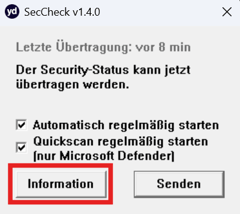
You can review the security information that will be transmitted beforehand by clicking the "Information" button.
What can I do if the Security Checker status is not displayed or is shown in red?
This usually means one of the following:
- The Security Checker has never been run.
- The last check is too old.
- The last check was unsuccessful.
Run the Security Checker on your Windows device and click "Send" to submit your latest report.
If you have already run the check before, make sure that all requirements for a successful check are currently met.
How often does the Security Checker need to be run?
FTo maintain a compliant status, the most recent check for the currently used device must not be older than 48 hours.
Each check applies only to the device on which it was run and to the account used during the check.
After a longer absence, it is recommended to start the Security Checker manually and send a current report to immediately regain compliant status.
If automatic submission is enabled, it may still take some time after a break before reports are sent automatically again.
Do I always have to start the Security Checker manually? Can the data be sent automatically?
No.
Your Security Status must be sent to the yoummday server regularly. This can be done either manually or automatically.
For manual submission, simply click the "Send" button.
After the first launch, you also have the option to let the Security Checker run in the background.
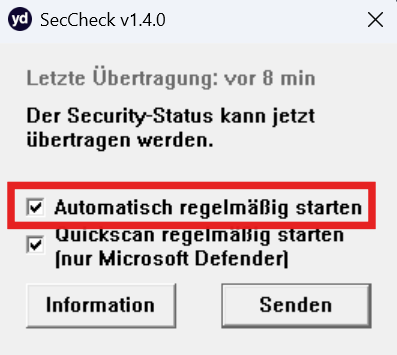
The data will then be collected and submitted automatically every 30 minutes.
If you also accept the second checkbox described in the privacy notice, the required Quick Scan will run automatically in the background as well, so you no longer need to manage it manually.
Do I need a separate antivirus program? Is Microsoft Defender sufficient?
Microsoft Defender is fully sufficient.
The Security Checker has been specifically designed to work with Microsoft Defender.
You may use a different antivirus solution if you prefer; however, this can sometimes result in compatibility issues, such as the application being incorrectly flagged as a threat.
What should I do if I use a Mac or Linux computer? What about smartphones or other operating systems?
Currently, the Security Checker application is only available for Windows.
If you use a Mac or Linux device, you can register it on the Security Check page of the platform as a Mac or Linux device. This grants a compliance status for two weeks, which can then be renewed on the platform.
The same applies to Android and iOS devices.
Important: Only macOS/iOS, Linux, and Android devices are currently supported. Other operating systems, such as Chromium OS, cannot be used on the platform.
What happens if I use multiple devices?
This is not a problem. However, each device requires its own valid security check.
For example:
- If your Windows work device has been successfully scanned and marked compliant
- Then you later log in using an Android smartphone
your status will be shown as non-compliant until the security of the Android device has also been confirmed.
The same applies if you use multiple Windows devices, such as a laptop and a desktop PC.
Requirements per device:
- Windows devices must have a successful Security Check within the last 48 hours
- Other supported devices must have their security confirmation renewed at least every two weeks
How is data protection handled, and can I object to using the Security Checker?
Please note that having a secure system is a basic requirement for working on yoummday projects. Therefore, use of the Security Checker is mandatory.
By downloading the application, you grant consent for the Security Checker to examine your system.
The technical data required to evaluate your security level, along with hardware-related information, is collected and stored on yoummday servers located in European data centers.
If you no longer wish to work on yoummday projects and would like all collected Security Checker data deleted, please send an email to:
Include:
-
Your name
-
Your Talent ID
You will receive confirmation once all relevant data has been deleted and your consent has been revoked.
All privacy information regarding the Security Checker can also be downloaded.
What are the consequences if the check is unsuccessful or if I do not want to use the Security Checker?
Please remember that you are contractually obligated to use a secure device when working with yoummday.
Requirements include:
- An up-to-date antivirus solution (e.g., Microsoft Defender on Windows or XProtect on macOS)
- An up-to-date operating system with all required updates installed
To turn individual check items green and achieve compliant status, follow the troubleshooting guidance provided by yoummday.
Important: yoummday cannot assist with the setup or administration of your personal system. Support is only available for issues related to the Security Checker application itself (for example, crashes or software errors).
How can I remove the Security Checker?
If you have finished working with yoummday and want to remove the Security Checker from your device, complete the following steps:
1. Delete Yoummday-SecCheck.exe from: "%LOCALAPPDATA%\Programs"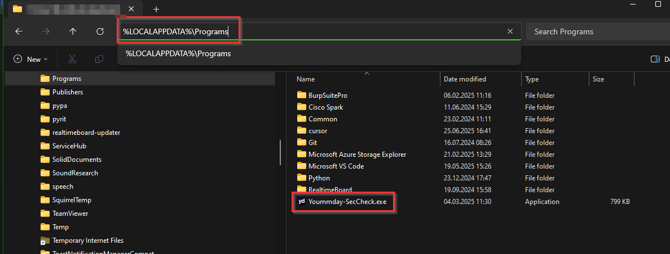
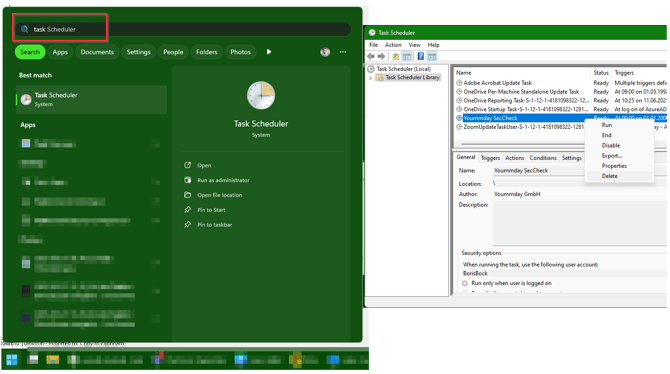
2. Remove the background task:
- Open the Windows Task Scheduler from the Start Menu.
- Delete the task named:
Yoummday SecCheck
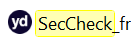
3. Delete any remaining files in your Downloads folder that:
- Are named SecChecker
- Display the yoummday logo
What can I do if my system is secure but the Security Check still fails? What should I do if there is a software error?
First, verify that all requirements for achieving compliant status are truly met.
Review the corresponding troubleshooting article for guidance.
If everything appears correct and the check still fails, create a support ticket through the Talent Support Chat.
The support team will determine whether the issue is caused by the Security Checker itself.
- If it is a software issue, the ticket will be forwarded to the internal IT or development team.
- If it is not a software issue, the support team will help you identify the steps needed to achieve compliant status.