
Once you have a project, you can schedule your own work hours within the client’s service hours. For most projects, you can do this directly through the Talent platform.
Keep in mind: You can only book shifts as long as your security status is “Compliant”!
We are currently in the process of gradually updating the shift planning for all projects. Some clients are still using the old shift planning, while others are already using the new one. The features remain largely the same, but the layout has changed.
This article is about the new layout!
(Jump directly to the sub-chapter that's relevant to you with a single click:)
Where can I find the the shift plan?
What do the colors and numbers in the shift plan mean?
Where can I see all generally available shifts?
How can I find out when new shifts are published?
Where can I find the the shift plan?
Clients can either use their own shift scheduling platforms or other methods for assigning shifts, or they can manage shift scheduling through the yoummday platform.
Don’t worry: In any case, you’ll learn everything you need to know during your initial training at the start of the project.
-
Log into your account at talent.yoummday.com
-
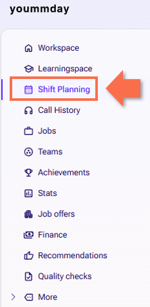
Select "Shift Planning" in the sidemenu on the lefthand-side
-
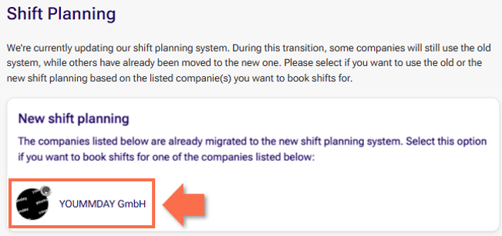
Select the company, for which you want to book your shift
-
Choose the specific contract / worktype, for which you want to book a shift via the dropdown menu

-
The schedule of the current week will open.
Does your project still use the old shift planning? Then check out this article instead: How does the old shift and absence planning work on the Talent Platform?
What do the colors and numbers in the shift plan mean?
You can always tell which service hours are available by the colored background. The colors depend on the selected worktype.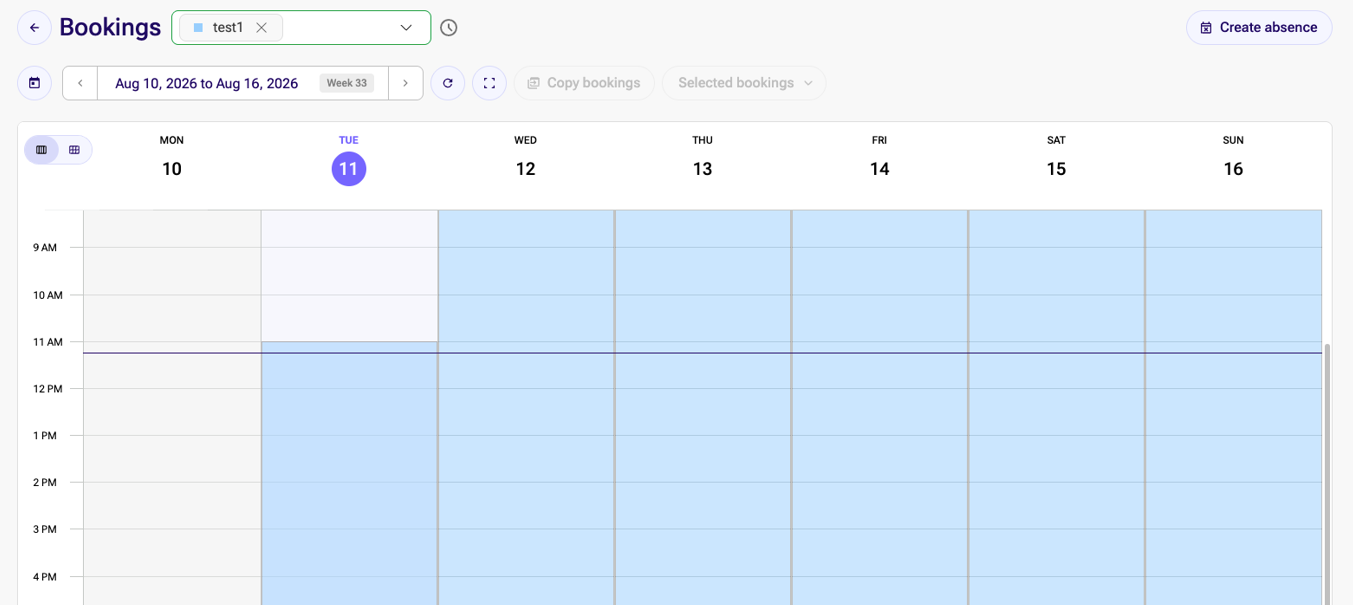
You can view up to three worktypes at the same time. The three worktypes do not necessarily have to be from the same project - this allows you to ensure that your shifts do not overlap, even if you are working for multiple clients. The colors always correspond to the color assigned to each worktype, which is in turn visible in the drop-down menu.
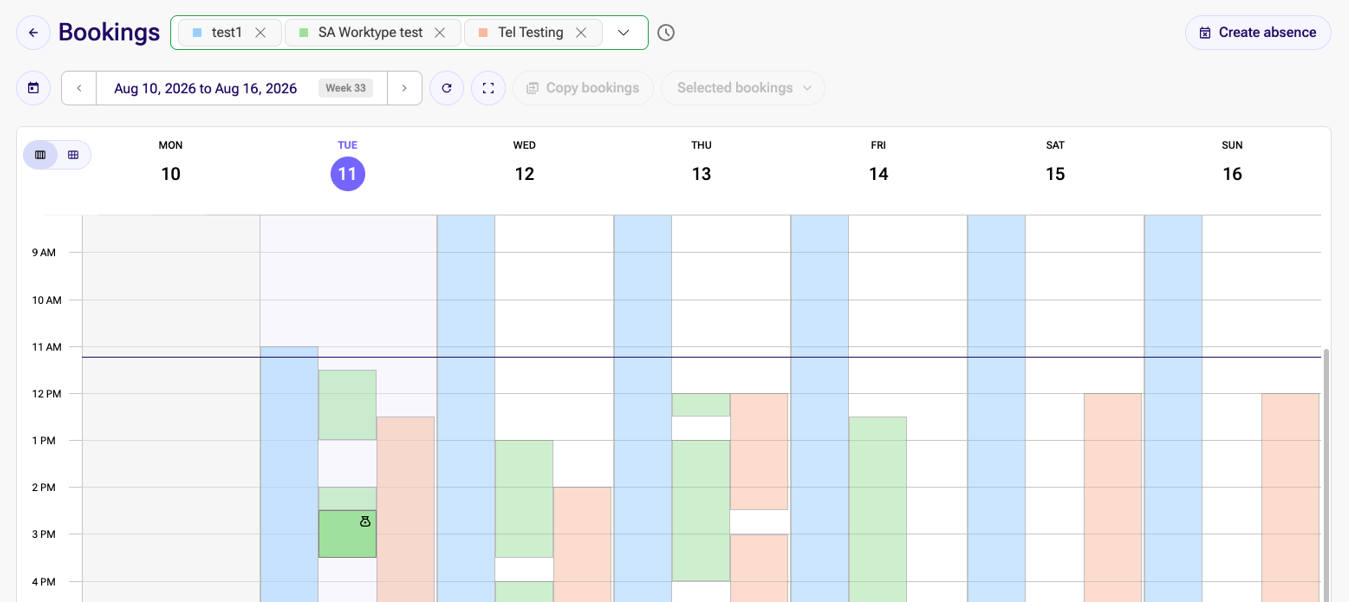
Every client on the yoummday platform has the option to specify, in half-hour increments, how many talents they need for their project during service hours. Because of this, shifts must always be booked in, at least, half-hour blocks.
The goal is to ensure that there are never too few or too many talents working at the same time. The calculations are based on past experience and the initial forecast, which is usually provided by the client.
Where can I see all generally available shifts?
In the default view, only currently still available shifts are displayed.
If you want to see all shifts that are generally available, you can use the slider in the upper-left corner to switch to “Show planned shifts.”
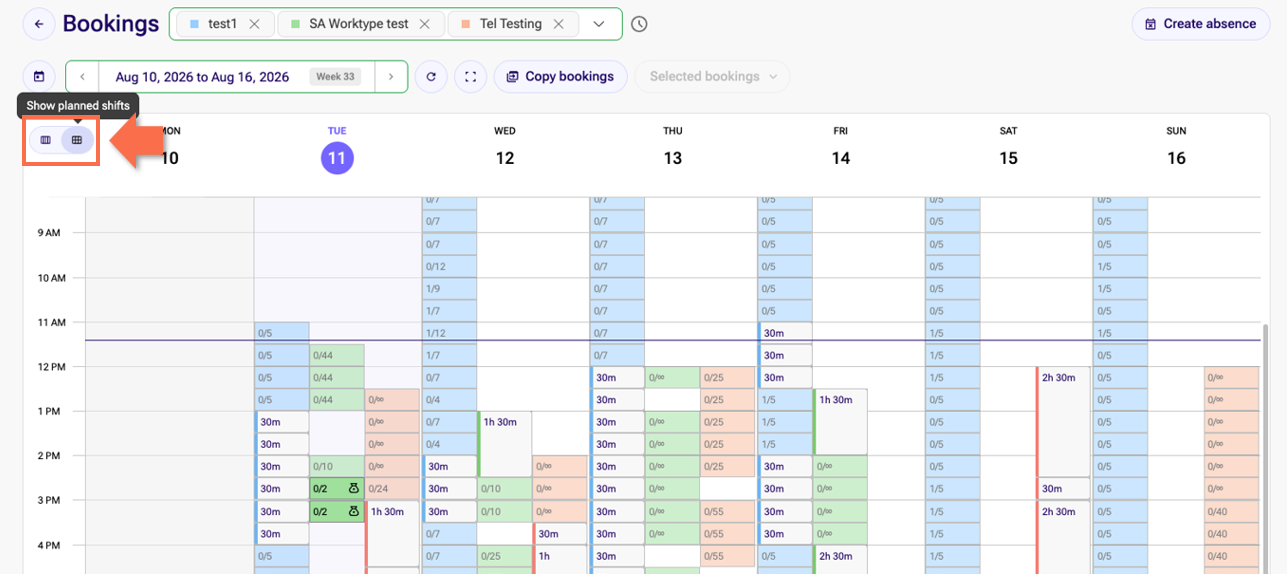
The number on the left in each shift block is the number of shifts already booked by someone in the team, and the number on the right is the total number of shift slots opened for that timeframe.
How can I find out when new shifts are published?
In general, each project can decide for itself how often and how far in advance shifts are posted.
You can view this information yourself at any time by clicking the clock icon right next to the drop-down menu for selecting worktypes.
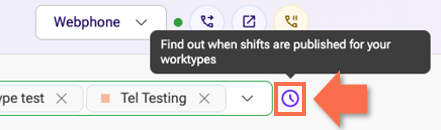
A pop-up window titled “Publication of new shifts" will open.
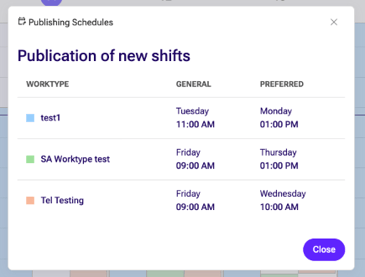
There, you can see when new shifts are posted for each worktype. The “General” column shows the general time for all agents. The ‘Preferred’ column shows the earlier time for agents that are allowed to book their shifts earliert. Click the “Close” button to return to the booking view.
Not all projects use a preferantial shift planning - and the requirements for qualifying for it vary from project to project.
Contact your TTL if you'd like to learn more about this for your specific worktype.
How can I book a shift?
You can only book shifts as long as your security status is “Compliant”!
You have two options: You can book each shift individually or copy all the shifts you’ve already booked in one week into the next.
To book individual shifts, follow these steps:
-
Open https://talent.yoummday.com and click “Shift Planning” in the left-hand sidemenu bar
-
On the shift planning page, select the company (client) for whom you want to schedule your shift
-
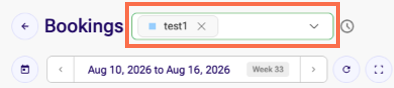
Click on the dropdown menu
-
Select up to three specific worktypes / contracts for which you want to book a shift
-
Look for open shift slots based on the colored background
-
Book yourself into an open shift using drag-and-drop: Click on the start time of your shift, hold down the mouse button, drag the box to the end of your desired shift, and then release the mouse button.
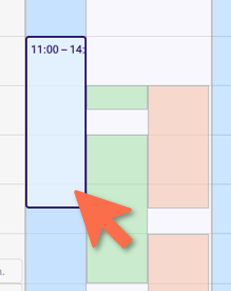
If a shift is already full or if you need to book a specific block of time, an error message will appear.
-
Your planned work hours are now booked. Repeat this step for the other work types and shifts you’d like to work.
- Check your weekly hours overview to see how many hours you’ve already booked for the week currently shown - the button is located on the right, in the same row where you select the time frame.

In this overview, you’ll see the total number of booked hours. If your project has specified these limits, you’ll also find the minimum number of hours for each worktype and the maximum number of hours you’re allowed to book.
In general, you can book as many shifts as you like using the shift scheduling tool.
Please follow the guidelines for your specific project: Most projects have a minimum - and, especially for smaller projects, often a maximum - number of hours per week that you should book! Sometimes, certain time slots should be booked preferably if they’re still available.
Alternatively, would you like to copy all shifts from the currently selected week to the following week? If so, click the “Copy bookings” button. You'll find it in the center, above the shift plan.

How can I cancel a shift?
You have several options: You can adjust the start and end dates of a single shift, or you can cancel your shift entirely. You can also cancel multiple shifts at once.
To adjust individual shifts, follow these steps:
-
Open https://talent.yoummday.com and click “Shift Planning” in the left-hand sidemenu bar
-
On the shift planning page, select the company (client) for whom you want to schedule your shift
-
Click on the dropdown menu and select up to three specific worktypes / contracts for which you want to adjust a shift
-
Look for the shift you booked that you want to cancel or change - they are highlighted by a gray box - and click on it
-
A pop-up window will open where you can adjust the start or end time
-
Alternatively, to cancel the entire shift, select the checkbox to delete it
-
Choose a reason for canceling your shift.
-
Confirm by clicking “Save”
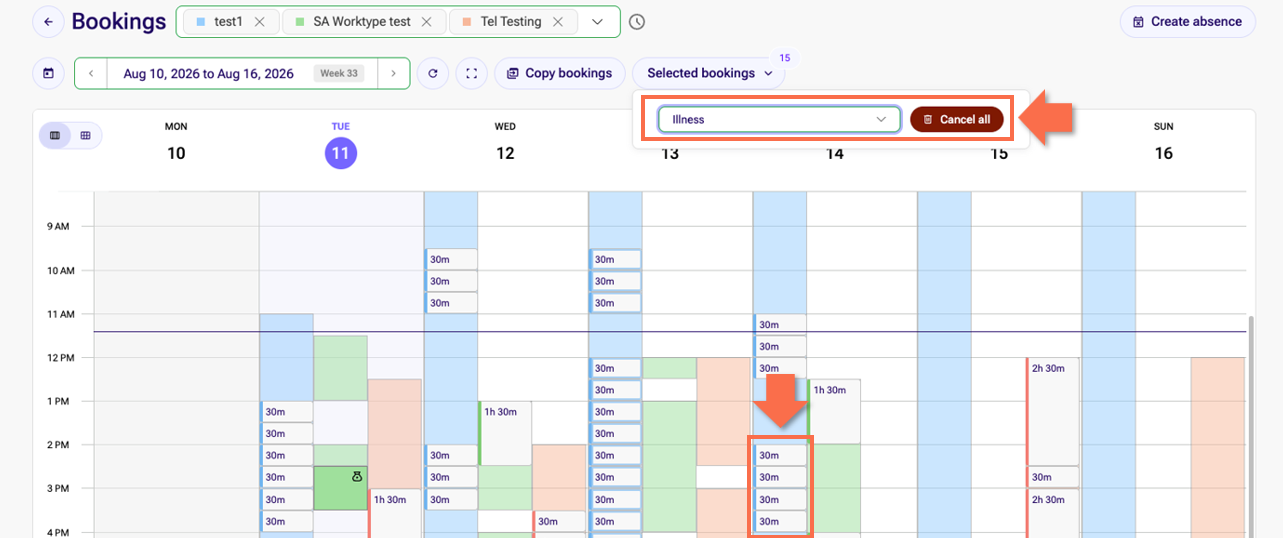
Would you like to cancel multiple shifts at once instead? If so, select all the shifts you want to cancel and confirm by clicking “Cancel all” in the pop-up window.
How can I enter an absence?
Will you be away for an extended period due to vacation or other personal commitments? If so, you can enter this period of absence into the shift plan. This way, the project managers will know when and why you might not meet your minimum number of hours.
We recommend giving your TTL an active heads-up in the event of extended absences.
-
Open https://talent.yoummday.com and click “Shift Planning” in the left-hand sidemenu bar
-
On the shift planning page, select the company (client) for whom you want to document a planned absence
-
Click on the dropdown menu and select up to three specific worktypes / contracts
-
Click “Create absence”

-
In the pop-up window, select the first and last dates of your absence
-
Confirm your selection by clicking “Save” - if you've already scheduled shifts during this period, they will be automatically deleted
-
Your absence will now be displayed in gray hatching above your shift schedule

How can I cancel an absence?
You cannot schedule shifts while you are away. However, if you unexpectedly return earlier than expected, you can cancel your absence just as you would cancel a scheduled shift.
-
Open https://talent.yoummday.com and click “Shift Planning” in the left-hand sidemenu bar
-
On the shift planning page, select the company (client) for whom you want to schedule your
-
Click on the dropdown menu and select up to three specific worktypes / contracts for which you want to adjust a shift
-
Click on the grey absence-bar at the top

-
To adjust the start or end time of your absence, click on the respective date, enter a new date, and confirm by clicking “Save.”
-
To cancel your entire absence, click “Delete absence” instead.