
To quickly find assistance with general questions or problems, there are two options available:
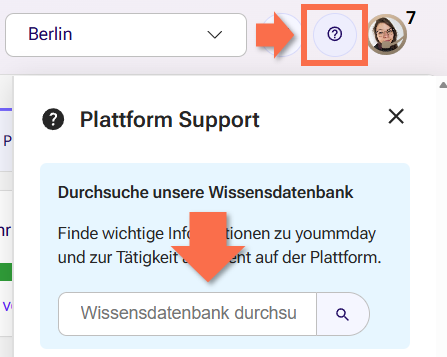
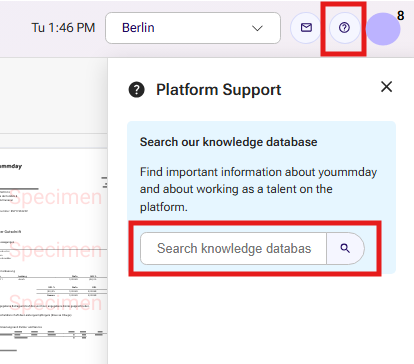
- Search for an answer in our Knowledge Base You can also access it directly on the website via the question mark icon.
-
-
Use our Support Chatbot, which can also be found in the Support menu.
Please note: This is not an AI chatbot.
For common issues, the chat will provide predefined troubleshooting paths and solutions. If your issue cannot be resolved through these options, the chatbot will help you create a ticket for Talent Support. The support team will then contact you by email.
For more information about Talent Support, see the article:
Step-by-step guide to using the Talent Support Chatbot
Open the chatbot by clicking "Start Chat" in the Support menu, or go directly to: https://talent.yoummday.com/supportchat
Accept the Terms of Use.

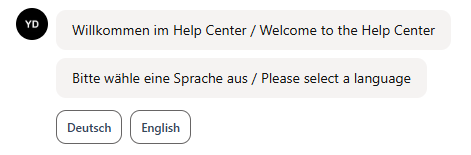
Important: The Support team will respond to you in the language you select.
Choose the main topic of your request from the available options.In some cases, you will immediately receive initial guidance or troubleshooting tips. For example, for technical issues, you may be advised to clear your cache and cookies as a first step.
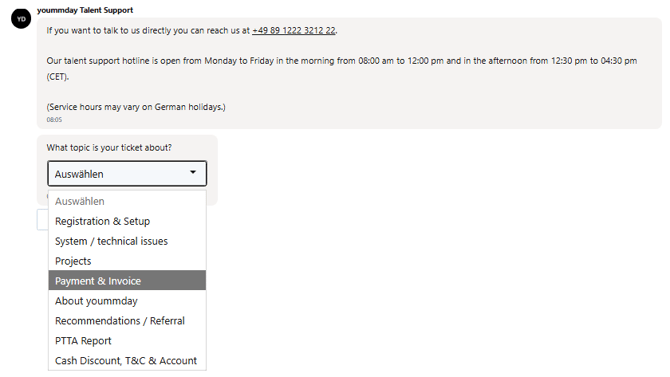
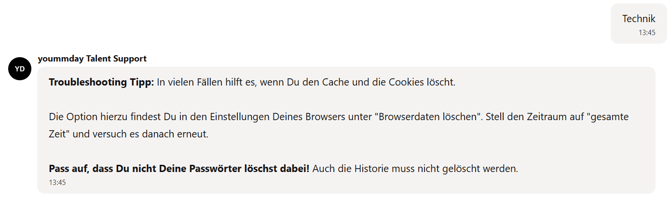
Continue through the available options until you are asked for additional information, such as:
-
A detailed description of the issue
-
The name of your project (for project-related requests)
-
Enter your response in the free-text field.
When describing an issue, include all relevant information from the start, such as:
-
What happened
-
Why you need assistance
- What steps have already been taken
Keep your description as concise and precise as possible.
- If you would like to add attachments, click the paperclip icon on the right side of the input field.
- Submit your information by clicking the arrow icon or pressing the Enter key..

- Submit your information by clicking the arrow icon or pressing the Enter key.
- Once all required information has been provided, you will receive a submission confirmation and the chat will close automatically.
- Talent Support will then contact you by email.
Do not create multiple tickets for the same issue if it has already been submitted to Support.
Important
If you are asked to provide your email address, always enter an email address associated with your account and one at which you can be reached.
If you provide an email address that differs from the one used to create your account, Support may be unable to share account-specific information with you due to data protection and privacy requirements.