
If your PC continues to start Windows instead of opening the Boot Menu, even after several attempts, try disabling Fast Startup.
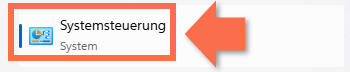
Step-by-Step Guide: Disable Fast Startup- Open the Control Panel in Windows 11 (search for Control Panel in the Windows search bar).

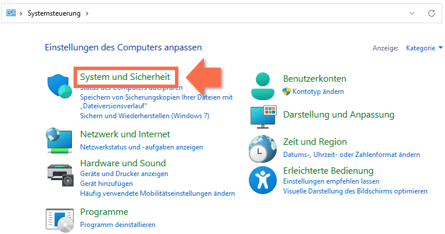
- Under "System and Security", click "Power Options".

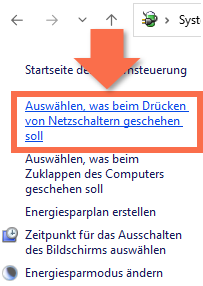
- In the menu on the left, click "Choose what the power buttons do".
- At the top of the window, click "Change settings that are currently unavailable"
and sign in with an administrator account if required.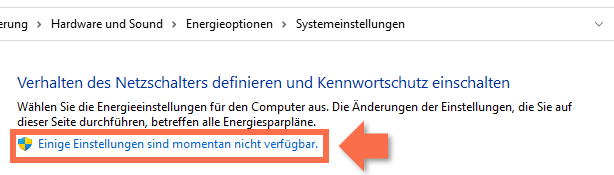
- Remove the check mark next to "Turn on fast startup (recommended)".
- Click "Save changes" to disable Fast Startup in Windows 10/11.
- Shut down your PC and try starting it through the Boot Menu again.
Step-by-Step Guide: Bypass Fast Startup and Access the Boot Menu from Windows
If the issue persists, try the following method:
- Click the "Start" button and then the Power icon to display the shutdown options.
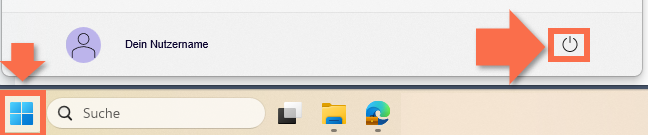
- Hold down the Shift key and click "Restart".
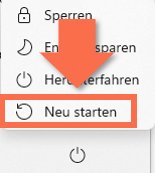
- Your computer will shut down and restart.
- After restarting, the "Advanced Startup Options" screen will appear. Select "Use a device".
- Select the IGEL USB Stick (IGEL UD Pocket). Your computer will then restart using the USB device.
This method can often help when the standard Boot Menu cannot be accessed during startup.