
How do I pause all incoming calls?
How do I pause incoming calls for individual projects?
How do I pause all incoming calls?
If you're taking a break or ending your shift, you'll likely want to stop receiving incoming calls during that time. With a single click, you can prevent new customer calls from being routed to you.
In the telephony section at the top of your Talent Dashboard, click the green button with the phone icon located to the right of the dropdown menu.

Once telephony is paused:
- The button will turn yellow.
- No further calls will be routed to you.

To start receiving calls again, simply click the same button once more and continue working.
How do I pause incoming calls for individual projects?
If you are active in more than one inbound project, you must ensure that during a scheduled shift you only receive calls for the client you are currently assigned to.
In most projects, parallel work is not allowed to ensure that you can focus fully on one topic and one client at a time.
To pause calls for a specific project, locate the project either:
In the Active Contracts section on your workspace, or

Under the "Contracts" tab in the platform's side menu, within the "Active Contracts" section. 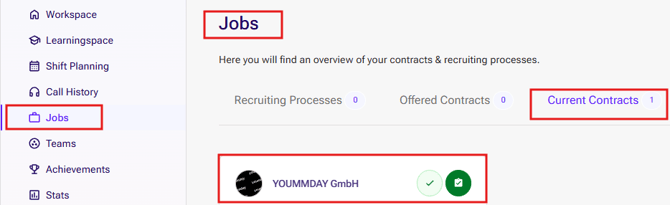
Find the project you want to pause and click the green circle with the green checkmark. 
Once the contract has been paused:
The icon will change to a yellow hand.
Incoming calls for that project will no longer be routed to you.

To reactivate incoming calls for the project, simply click the yellow hand again. Calls will then be routed to you as usual.