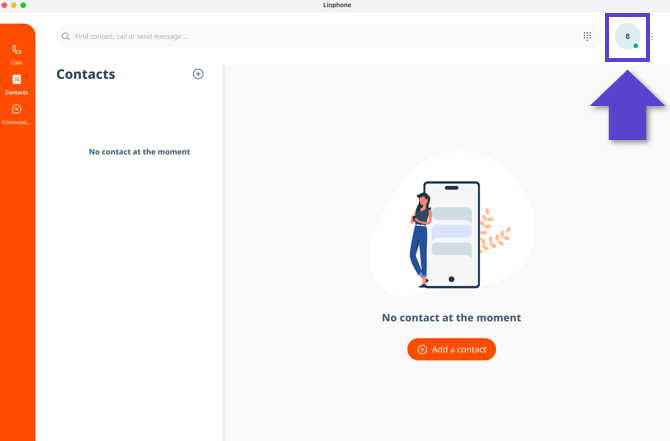
In addition to our own Webphone, you can also use any other SIP-based telephony software. For Windows users, we recommend MicroSIP, and for Mac users, Linphone. Both applications can be downloaded easily through the Talent Dashboard, and we'll show you how to set them up.
Simply choose the option that applies to you:
How do I set up the MicroSIP Softphone (Windows)?
How do I set up Linphone (macOS)?
How do I set up the MicroSIP Softphone (Windows)?
- Select "Softphone" from the dropdown menu on the Talent Platform.
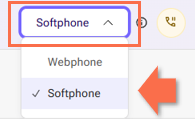
- Click the "Info" button next to the dropdown menu.

- Click the "MicroSIP Lite" button to open the software provider's website.
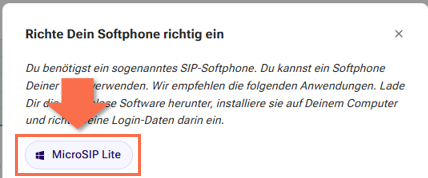
(You will automatically be shown the version appropriate for your operating system.) - Download and install the latest version of MicroSIP Lite.
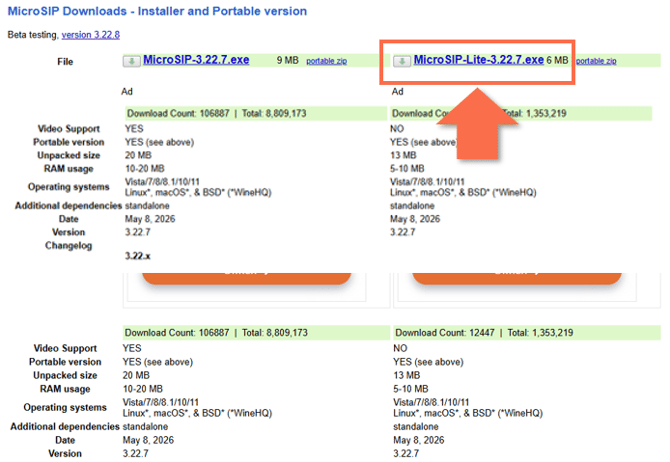
(The Lite version is sufficient since video calling is not required.) - Start MicroSIP after installation. The main window will open with a dial pad and several tabs.
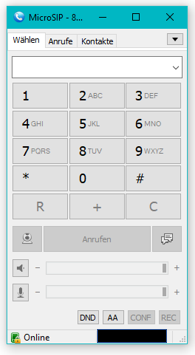
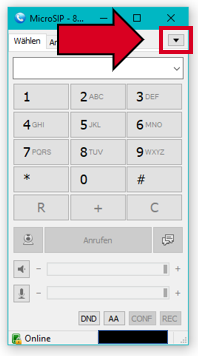
- For the initial setup, click the arrow next to the tabs and select "Add Account...".
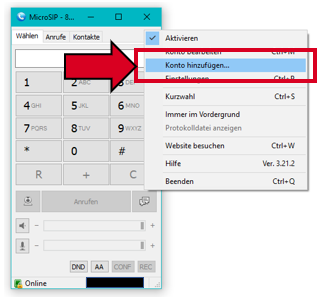
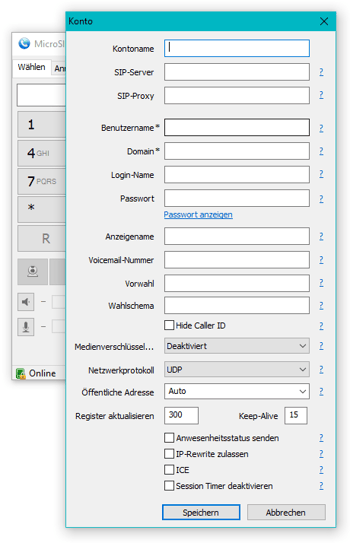
- A form will appear where you will need to manually enter your setup information.
- Return to the Talent Platform and click the Info button next to the dropdown menu again.
- You will find your login credentials in the lower section of the pop-up window.
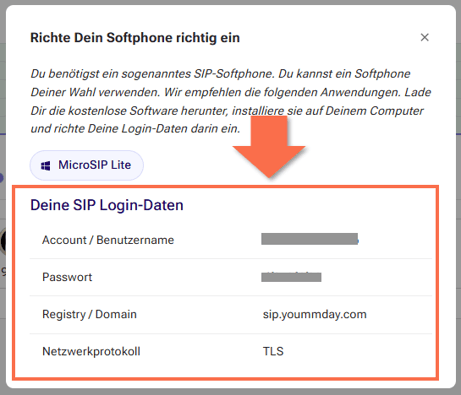
- Enter the displayed information into MicroSIP. Please note that your account number and password are unique and will differ from any examples shown.
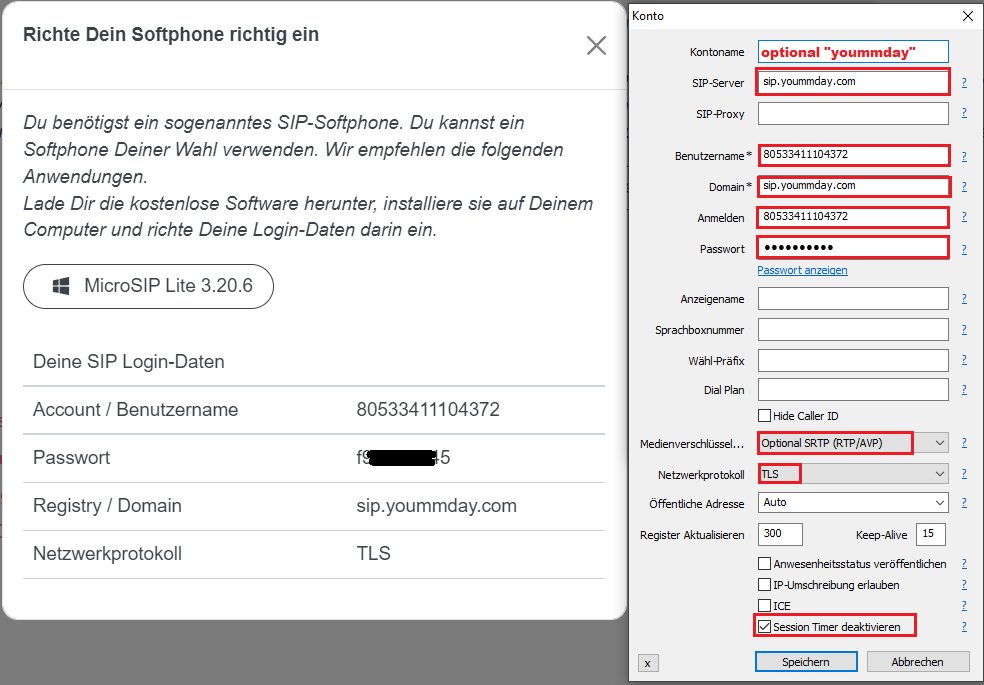
- Click "Save" to complete the setup. Your Softphone has been configured successfully when your status in MicroSIP changes to "Online".
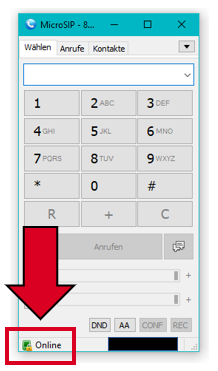
- Incoming calls will now be routed to the Softphone, allowing you to answer calls and conduct conversations directly through MicroSIP.
How Do I Set Up Linphone (macOS)?
- Select "Softphone" from the dropdown menu on the Talent Platform.
- Click the "Info" button next to the dropdown menu.
-
Click the "MicroSIP Lite" button to open the provider's website and download the latest available version.
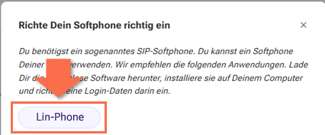
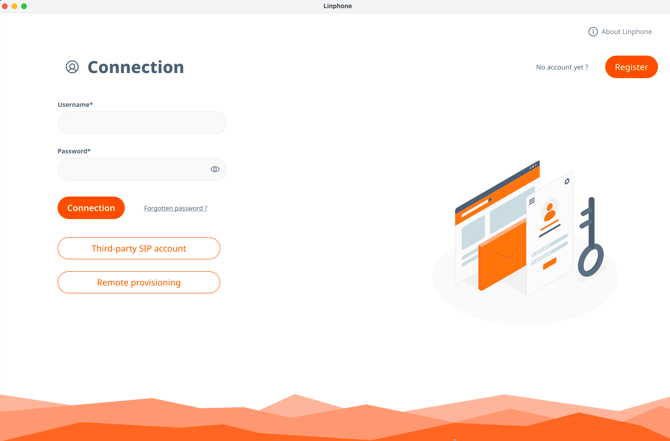
(You will automatically be shown the version suitable for your operating system.) - Launch Linphone and click "Third-party SIP account".
- Return to the Talent Platform and click the Info button next to the dropdown menu again:
- Your login credentials can be found in the lower section of the pop-up window. Enter them into the corresponding fields in Linphone.
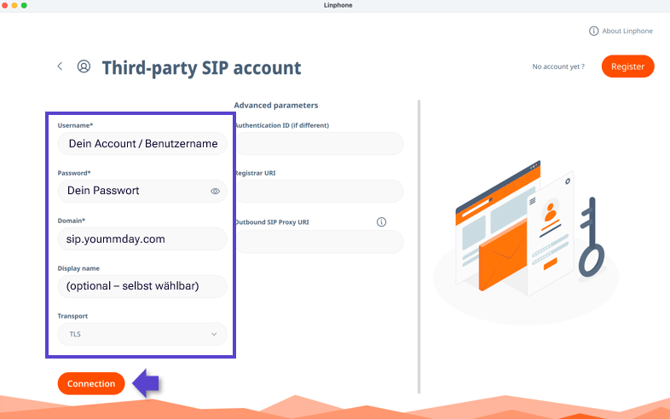
- Your status will now appear as "Online" in the upper-right corner. Setup is complete, and you will receive incoming calls through Linphone from now on.