![yoummday logo white-300 (1).png]](https://helpdesk.yoummday.com/hs-fs/hubfs/yoummday%20logo%20white-300%20(1).png?height=16&name=yoummday%20logo%20white-300%20(1).png)
⭐ What you can achieve with the Recruiting Tool
- Publish job offers for talents
- Review and manage applications
- Onboard talents into trainings and projects
- Define requirements (skills, countries, languages)
- Plan training dates and start times
Important:
Before creating a job posting, a project must already be created and configured.
A step-by-step guide for project setup can be found here:
👉 https://helpdesk.yoummday.com/en/help-center/how-do-i-create-and-configure-a-project
🧩 1. Create a Worktype (Project Foundation)
The Worktype defines the core setup of your project, including:
- Project title
- Task description
- Working time model
- Technical requirements
- Compensation framework
- Training dates
The Worktype serves as the basis for your later job posting.
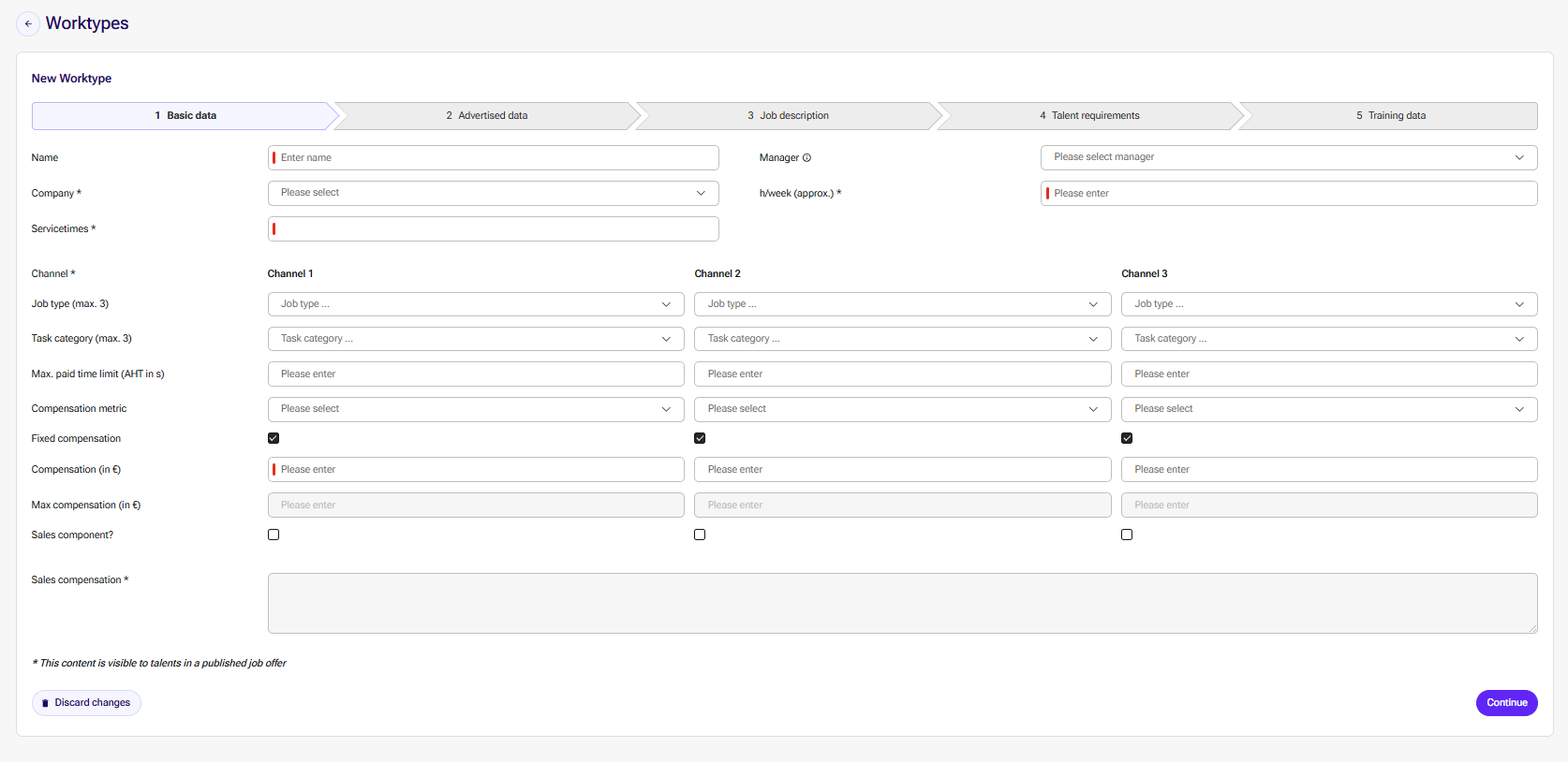
🔐 Select Managers
You can only select users who have the project member role “Manager.”
This means:
- Only users with the Manager role appear in the selection list
- These users have full operational control within the project
🎯 Select Recruiters
You can only select users who have the project member role “Recruiter.”
This means:
- Only users with the Recruiter role appear in the selection list
- Recruiters can manage talents and handle operational recruiting steps
This ensures that only authorized team members are involved in the recruiting process.
📋 Advertised Data
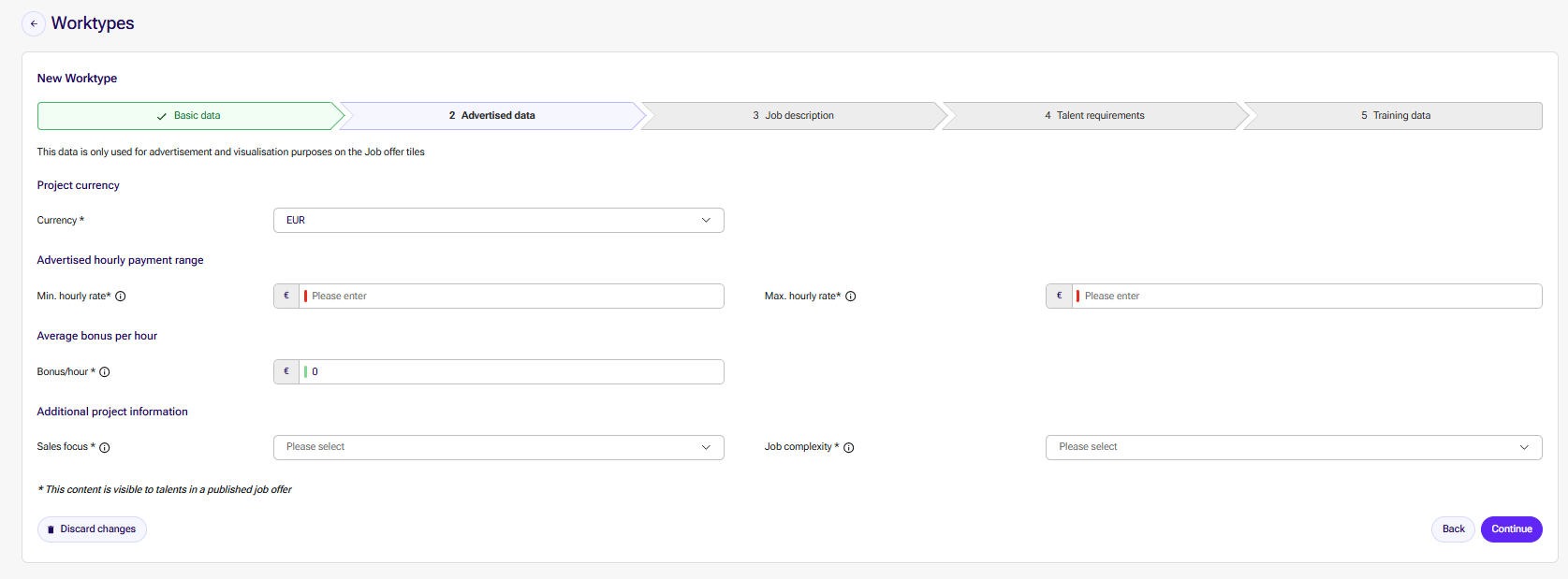
In the next step, you define the key framework conditions of your posting.
These details will later be displayed on the job posting cards and help talents better understand your offer.
The following information is required:
💰 Hourly Rate (Min. / Max.)
Define the compensation range per hour.
This increases transparency and helps talents evaluate the opportunity.
💸 Bonus per Hour (Optional)
Optionally add an additional hourly bonus to make the offer more attractive.
📈 Sales Focus
Specify whether and to what extent sales activities are part of the project.
🧠 Job Complexity
Select the appropriate complexity level to give talents a realistic understanding of the project requirements.
💡 Note:
These details are visible to talents once the posting is published. Please ensure the information is clear and realistic.
📝 Add the Job Description
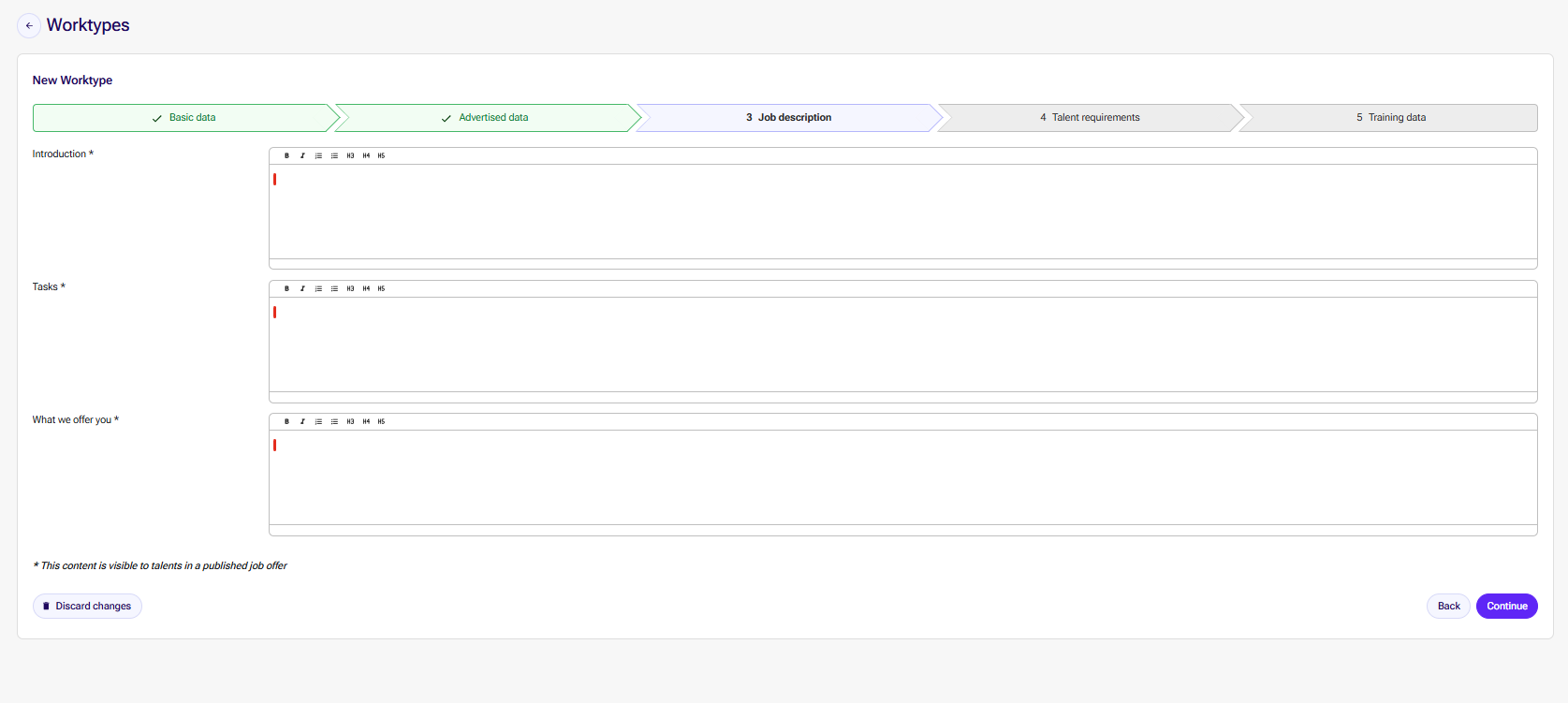
Introduction
Provide a short overview of the project and the role.
Explain what the project is about, what the talent will support with, and what candidates can expect overall.
Tasks
Describe the main day-to-day responsibilities of the talent.
List the key activities, tools, customer interactions, or processes the talent will handle.
What we offer you
Highlight the benefits and advantages of the project for talents.
For example: flexible working hours, remote work, attractive payment, long-term collaboration, training, or development opportunities.
👤 Define Talent Requirements
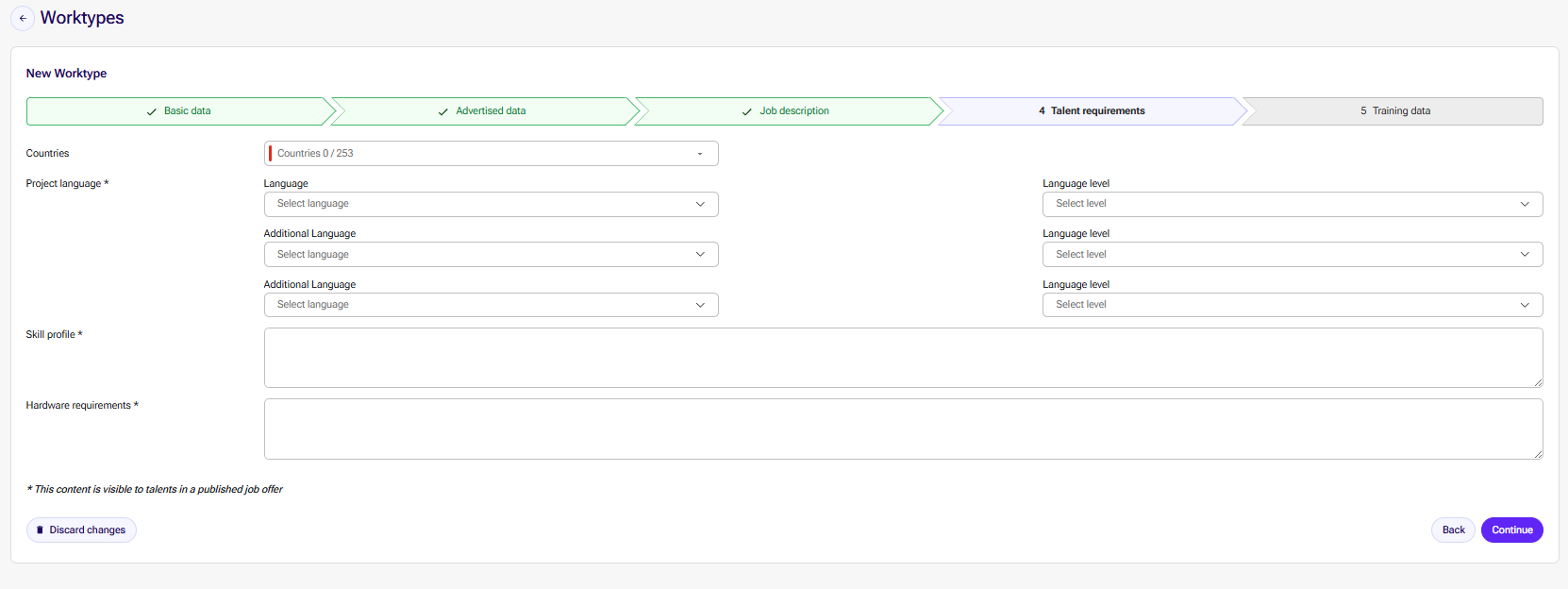
Here you can define:
- Language level
- Skills
- Regions / countries
- Technical requirements
- Required number of talents
📅 Define Training Data
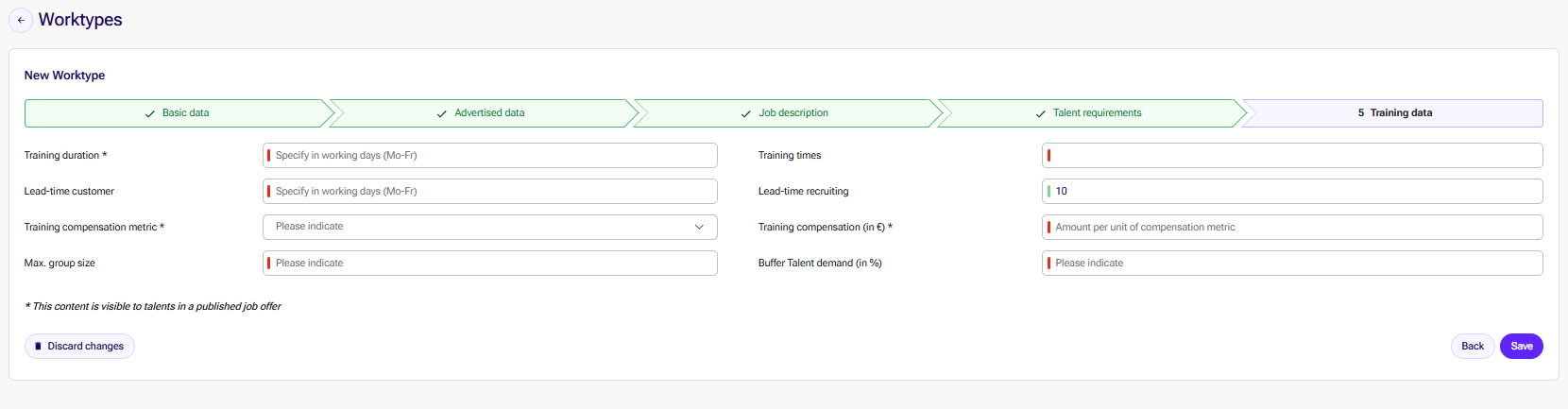
Specify:
- Training schedules
- Planned project start dates
- Training commitments for selected talents
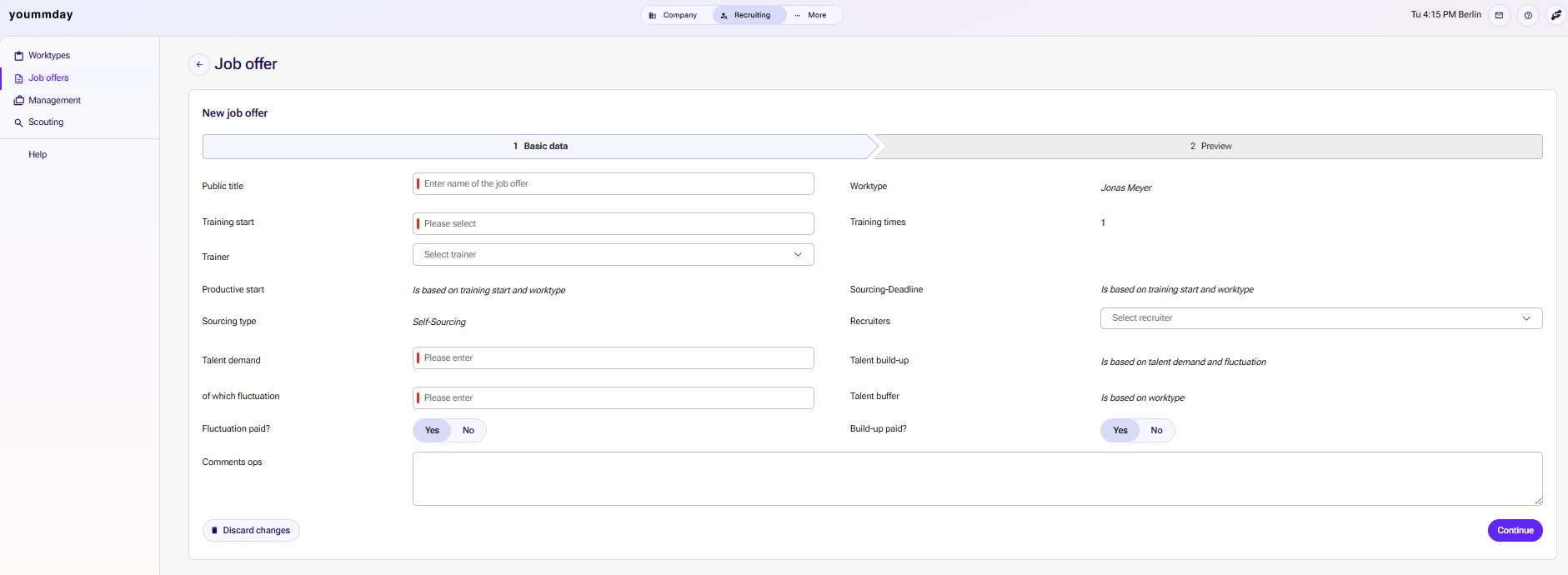
📣 2. Create the Job Posting
Once the Worktype has been created, you can generate the actual job posting.
There you define:
- Title and description
- Training and start dates
- Required number of talents
- Visibility of the posting
👥 3. Manage Applications
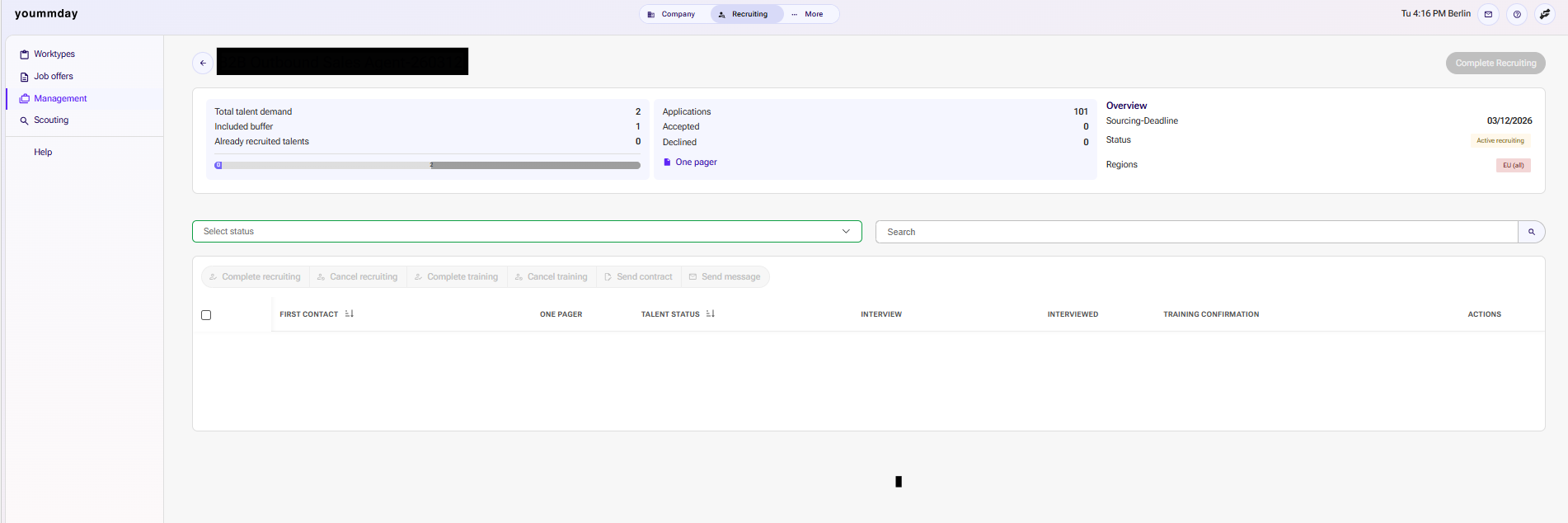
Within the Management section, you always maintain a clear overview of all incoming applications.
The interface provides structured insights into:
- Total demand and already recruited talents
- Number of applications, acceptances, and rejections
- Sourcing status (e.g. “Recruiting Pending”)
- Sourcing deadline
- Defined regions or country restrictions
Below the overview section, you will find a table containing all applicants. There you can:
- Filter talents by status
(e.g. “Application Under Review,” “Recruiting Cancelled,” “Recruiting Completed”) - Accept or reject talents
- Send messages to applicants
- Search for talents by name
- Initiate next process steps such as training or contract handling
This allows you to manage every talent completely — from application to final onboarding into the project.
📊 Column Overview
| Column | Description |
|---|---|
| First Contact | Date and time of the first contact |
| One Pager | Short project overview and sending status |
| Talent Status | Current recruiting progress |
| Interview | Scheduled interview time |
| Training / Training Confirmation | Training commitment timing |
| Actions | Continue recruiting steps, manage process, etc. |