![yoummday logo white-300 (1).png]](https://helpdesk.yoummday.com/hs-fs/hubfs/yoummday%20logo%20white-300%20(1).png?height=16&name=yoummday%20logo%20white-300%20(1).png)
Instructions: Set up login with multi-factor authentication
Why is multi-factor authentication required?
To protect your account, we use multi-factor authentication, also known as MFA. This means that your password alone is no longer enough to log in. In addition to your password, you need a one-time security code generated by an authenticator app on your smartphone.
This is an established security standard and helps prevent unauthorized access to your account, even if your password accidentally becomes known to someone else.
We recommend using the Microsoft Authenticator app for setup.
1. Install Microsoft Authenticator on your smartphone
Before you can complete the login, you need the Microsoft Authenticator app on your smartphone.
Open the relevant app store on your smartphone:
iPhone / iOS:
Open the App Store and search for:
Microsoft Authenticator
Android:
Open the Google Play Store and search for:
Microsoft Authenticator
Install the app on your smartphone. The app is free of charge.
After installation, open the app once and, if requested, allow access to the camera. The camera is needed to scan the QR code during setup.
2. Open the login page
Open the login page in your browser.
Enter your login details:
- Your email address
- Your password
Then click Log in.
3. Start MFA setup
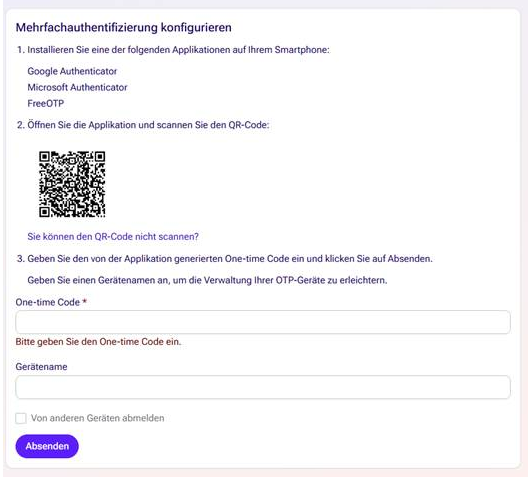
After logging in, the multi-factor authentication setup page will open automatically.
You will see the heading:
Configure multi-factor authentication
A QR code is displayed on this page. This QR code must be scanned with the Microsoft Authenticator app.
4. Add your account in Microsoft Authenticator
Now open the Microsoft Authenticator app on your smartphone.
Proceed as follows:
- Tap + or Add account in the app.
- Select the appropriate option, for example:
Work or school account or Other account. - Select Scan QR code.
- Scan the QR code displayed on the login page in your browser.
After scanning the QR code, the account will be added to the Microsoft Authenticator app.
5. Enter the one-time code
Once the account has been added, the Microsoft Authenticator app will display a 6-digit one-time code.
This code changes automatically on a regular basis, usually after a few seconds.
Enter this code on the MFA setup page in the field:
One-time Code
Make sure to use the currently displayed code. If the code is about to expire, wait briefly until a new code appears and then enter the new code.
6. Enter a device name
In the Device name field, you can enter a name for your smartphone.
Examples:
iPhone Thilo
Samsung company phone
Microsoft Authenticator smartphone
The device name helps you identify and manage your registered MFA devices later.
7. Complete the setup
Then click Submit.
Multi-factor authentication is now set up. You can continue with the login.
8. Future logins
For future logins, first enter your email address and password as usual.
You may then be asked to enter a one-time code again. In that case, simply open the Microsoft Authenticator app and enter the currently displayed code.
9. Important notes
Keep your smartphone safe, as it will be required for future logins.
Do not delete the account entry from the Microsoft Authenticator app as long as you still need access.
If you change or lose your smartphone, please contact support in good time so that the MFA setup can be reset or configured again.
If you cannot scan the QR code, use the option on the setup page:
You cannot scan the QR code?
This allows you to complete the setup manually.